
- Open Source • Powerful • Flexible
SwarmUI – Powerful AI Image Generation with Flexible Workflows
SwarmUI is a free, open-source AI image generation interface that helps you create high-quality images using multiple AI models and customizable settings, all in one intuitive platform.
With ComfyUI integration and flexible workflows, SwarmUI makes AI image generation easier for beginners and experienced creators. Explore its features and customize your workflow to bring creative ideas to life.
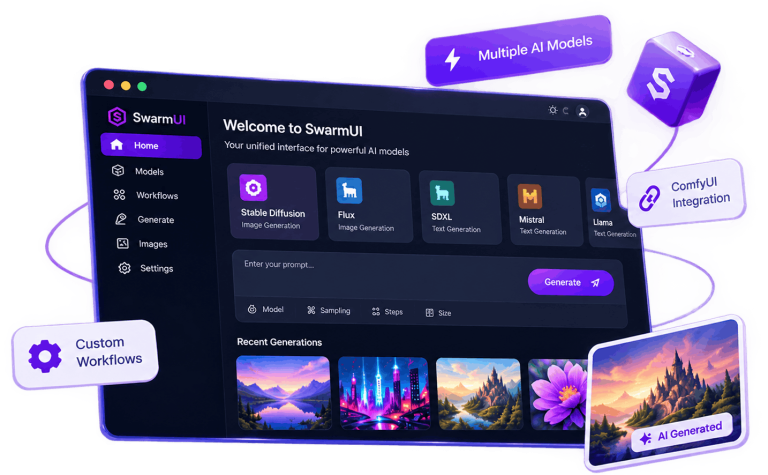
- Multiple Models
- Custom Workflows
- Easy to Use
- Open Source
What Is SwarmUI?
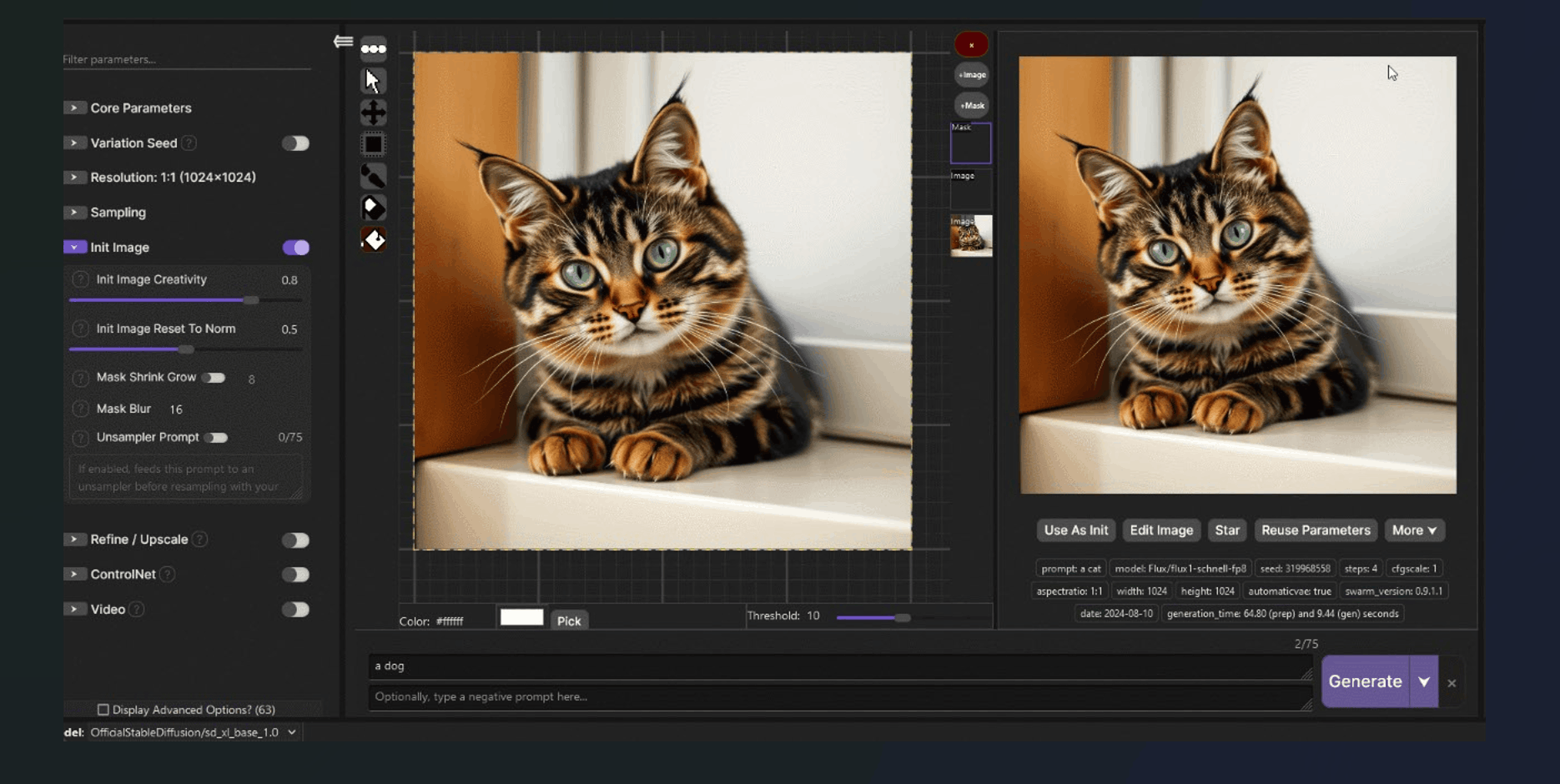
SwarmUI is a web interface for AI image generation that brings model selection, prompt writing, generation settings, and supported workflows into one workspace. It helps users create images and manage their generation environment without handling every operation through command-line tools.
Unlike an AI image-generation model, SwarmUI relies on a compatible backend and model to perform the actual image generation. Available features, image quality, generation speed, and hardware requirements depend on the models and components configured in your installation.
Offers flexibility for different experience levels. Beginners can start with a simple text prompt, while experienced users can explore image prompting, ControlNet-related workflows, upscaling, custom ComfyUI workflows, and programmatic integrations.
SwarmUI supports local installations and deployment on compatible remote infrastructure. Local setups provide greater control over files and configuration, while remote environments may require hosting resources, additional security measures, and ongoing costs.
Key Features
SwarmUI Features for Flexible
AI Image Generation
SwarmUI brings essential image-generation controls and workflow options into a unified interface. Its capabilities help users manage models, refine prompts, adjust generation parameters, and work with supported backend integrations.
From experimenting with AI art styles to configuring repeatable generation processes, users can adapt available settings to their creative goals and the capabilities of their selected models.
Model Selection & Management
Browse and select supported AI models for different image-generation tasks. A centralized interface helps you manage model choices and generation settings without treating every creative experiment as a separate process.
Image Upscaling & Enhancement
Improve image resolution with supported upscaling options to create larger, more detailed outputs. Available enhancement methods and results depend on the configured models, backend integrations, and workflow settings.
Customizable AI Workflows
Move beyond basic generation with configurable workflows. Use compatible workflow options to build repeatable processes, test different configurations, and organize more advanced creative tasks.
Image History and Organization
Review generated outputs and use available history and browsing tools to revisit earlier results. Keeping generations organized makes it easier to compare variations and continue developing an idea.
Extensible Backend Support
SwarmUI supports configurable backend options, including its ComfyUI integration. The available setup depends on your installation, backend configuration, and the features you intend to use.
Prompt and Generation Controls
Customize prompts and adjust available parameters to explore different visual directions. Fine-tune settings such as image dimensions, sampling options, and generation steps where supported by the selected model and workflow.
How Does SwarmUI Work?
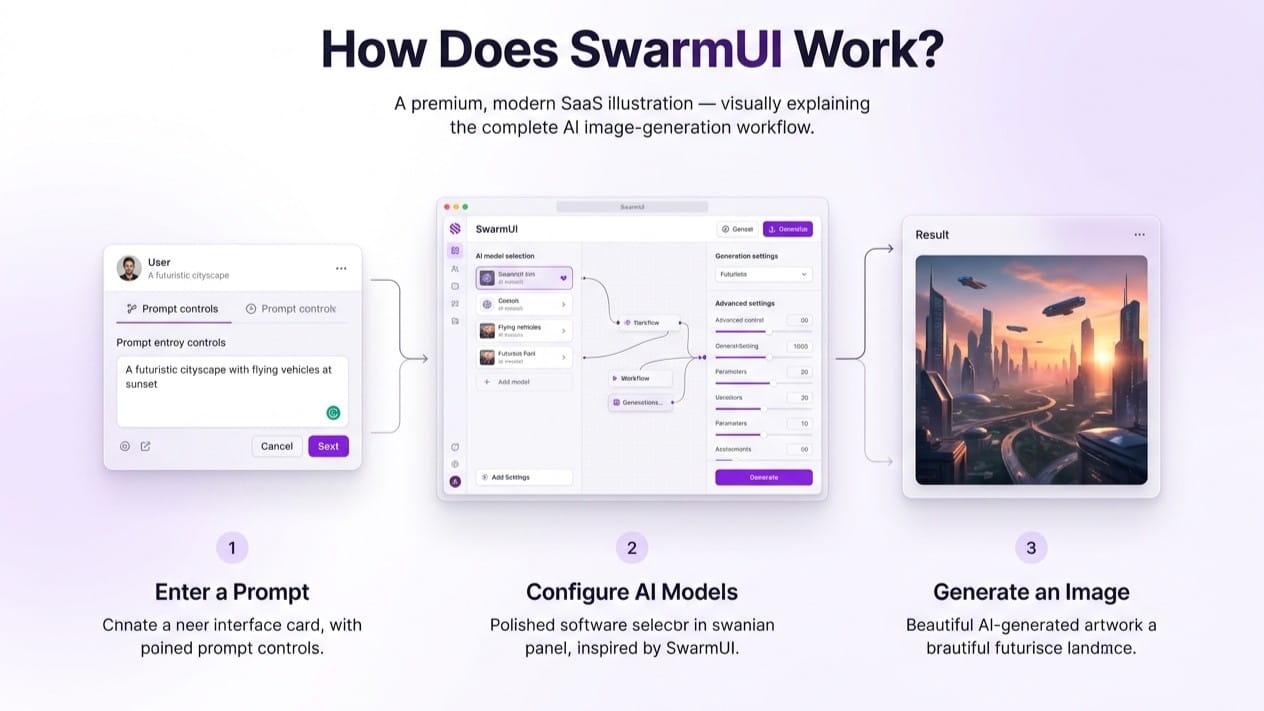
SwarmUI provides a unified workspace for configuring and running supported AI image generation workflows. Users can select an available model, enter text prompts, and adjust generation parameters according to their creative goals and system configuration.
The SwarmUI interface helps organize model selection, prompt settings, and image generation controls in one place. Depending on the installed models and connected backends, users can experiment with different visual styles, refine generated results, and build repeatable workflows for AI-powered image creation.
Prepare your environment: Install SwarmUI and configure the required components for your system.
Select a compatible model: Choose an available model suited to your intended output.
Write your prompt: Describe the subject, composition, visual style, and relevant details.
Configure generation settings: Choose suitable dimensions and adjust the available parameters.
Generate and review: Examine the output, refine your prompt or settings, and repeat the process when necessary.
AI Models and Image Generation
The model you choose has a major influence on the appearance, style, and quality of generated images. Some models may be better suited to particular visual styles or tasks, while others may require different hardware resources or configuration. When working with SwarmUI, consider model compatibility, file size, available memory, and the type of image you want to create. Testing a few settings at a time can help you understand the relationship between prompts, models, and results.
Flexible Workflows and ComfyUI Integration
Workflow flexibility is an important consideration for users who want more control over AI image generation. SwarmUI can be used with compatible ComfyUI-related workflows and configurations, depending on the installed components and current version. Before using an integration, confirm that the required backend, models, and dependencies are correctly configured. Understanding how the components connect can help you troubleshoot workflow errors and make better use of available features.
SwarmUI Installation and First-Time Setup
A reliable installation begins with checking your operating system, hardware, and software requirements. Follow the appropriate installation instructions for your environment and allow required components to finish configuring before starting your first generation. After installation, confirm that the interface loads correctly, the required backend is available, and a compatible model can be selected. Running a simple test generation first makes it easier to identify configuration issues before attempting more complex workflows.
SwarmUI System Requirements and Performance
AI image generation performance depends on several factors, including GPU capabilities, available video memory, system RAM, model architecture, image resolution, and generation settings. A model that works well on one computer may require lower settings or additional resources on another. If generation is slow or fails, try a smaller image size, a compatible model, or less demanding settings before making major changes to your installation. Check the system requirements and model-specific recommendations before choosing a setup.
Understanding the SwarmUI Interface
Getting familiar with the interface helps you work more efficiently. Focus on the main areas involved in selecting a model, writing prompts, configuring generation parameters, starting a task, and reviewing results. Learn one group of controls at a time rather than changing every parameter simultaneously. This approach makes it easier to understand which settings influence your results and which adjustments are actually useful for your workflow.
Troubleshoot SwarmUI Problems
No Backends Available
Check that a compatible backend is installed and running. Review startup errors for missing components or issues. Verify model paths and dependencies to restore image generation.
Models Fail to Load
Confirm that the model file is complete, located in the expected directory, and supported by your configured backend. Check any additional model requirements where applicable.
GPU Memory Errors
Try reducing image dimensions or using a less demanding compatible model. Close unnecessary GPU-intensive applications and review the requirements for the model you are using.
Errors After Updating
Check the error message, backend status, and compatibility of installed components. Configuration differences or dependency issues may require attention after an update.
Why Trust Our
Finding accurate information about AI image generation software can be challenging, especially when installation steps, AI models, backend configurations, and system requirements change over time. Our goal is to make learning and using SwarmUI easier through clear, practical, and regularly reviewed resources.
Tested Tutorials and Practical Guidance
We focus on providing easy-to-follow SwarmUI tutorials, installation instructions, model configuration guides, and troubleshooting solutions. Our content aims to explain each process with practical steps so users can understand the software and resolve common issues confidently.
Accurate and Updated Technical Information
AI image generation tools evolve continuously. We review relevant technical information, software features, compatibility details, and configuration instructions to help keep our SwarmUI resources useful and up to date.
Transparent and Independent Information
We aim to provide objective information about SwarmUI, its features, supported workflows, and limitations. Our website is an independent informational resource and is not affiliated with or endorsed by the official SwarmUI project unless explicitly stated otherwise.
Privacy, Security, and Responsible Usage
Understanding how local AI image generation works is important. We explain relevant privacy considerations, local processing, model management, and configuration practices to help users make informed decisions when using SwarmUI.
Helpful Resources for Beginners and Advanced Users
Whether you are installing SwarmUI for the first time, exploring AI image generation models, configuring ComfyUI workflows, or troubleshooting technical issues, our guides are designed to provide clear and relevant information for different experience levels.
Our Commitment:
We prioritize clarity, technical accuracy, transparency, and practical value in every guide to help users make better decisions and get more from their SwarmUI experience.
Ready to Get Started With SwarmUI?
Start exploring AI image generation with SwarmUI. Check your system requirements, prepare a compatible model, and follow the installation guide to set up your environment. Once everything is ready, you can experiment with prompts, customize generation settings, and explore flexible workflows to create images that match your creative ideas.
Download SwarmUI to begin exploring its features and capabilities. Follow the appropriate setup instructions to configure your environment and get started smoothly. Whether you are new to AI image generation or looking to refine your workflow, SwarmUI provides a flexible interface for experimenting with compatible models and generation options.
Frequently Asked Questions
What is SwarmUI used for?
SwarmUI is an interface for AI image generation that lets users work with compatible models, adjust generation settings, and explore different image creation workflows.
Is SwarmUI an AI model or an interface?
SwarmUI is an interface, not an AI model itself. It works with compatible models and generation components to help users create AI-generated images.
Is SwarmUI free to use?
SwarmUI is associated with a free, open-source software project. Check the applicable licence and the terms of any separately installed models or components.
Is SwarmUI suitable for beginners?
Yes, beginners can start by learning the interface, selecting a compatible model, writing simple prompts, and gradually exploring additional generation settings.
What can you create with SwarmUI?
You can explore AI-generated visual concepts, artwork, illustrations, and other image styles supported by your selected model and configuration.
Where can I download SwarmUI?
Use a trusted, current distribution source and verify that the download matches your operating system and intended installation method.
How do I install SwarmUI on Windows?
Check the Windows installation requirements, follow the instructions for the current release, configure the required components, and verify that the application starts correctly.
What should I check before installing SwarmUI?
Check your operating system, available storage, hardware capabilities, software dependencies, and the requirements of the models you plan to use.
Why is SwarmUI not starting after installation?
Common causes include missing dependencies, incomplete setup, incorrect paths, or backend configuration problems. Review the startup error messages to identify the cause.
What should I do after installing SwarmUI?
Confirm that the interface opens, check backend availability, select a compatible model, and run a simple test generation before exploring advanced settings.
How do I add models to SwarmUI?
Place or configure compatible model files according to your installation instructions, then check that the selected backend can access and load them.
Which AI models work with SwarmUI?
Compatibility depends on the model format, backend, installed components, and current version. Check the requirements of your chosen model before installing it.
How do I generate images with SwarmUI?
Select a compatible model, enter a descriptive prompt, configure the available generation settings, and start the image generation task.
How can I improve SwarmUI image quality?
Refine your prompt, experiment with compatible models, and adjust relevant generation settings one at a time. The best configuration depends on the model and intended output.
Why is my model not appearing in SwarmUI?
Check the model directory, file compatibility, configured paths, and backend status. A model may not appear if it is stored incorrectly or unsupported by your setup.
Does SwarmUI support ComfyUI integration?
SwarmUI can work with compatible ComfyUI-related workflows and configurations. Available functionality depends on the installed version, backend, and required components.
What are workflows in SwarmUI?
Workflows describe the steps and components used to perform a generation task. Depending on your setup, they can help organize model operations and image creation processes.
Can I customize image generation settings in SwarmUI?
Yes, you can adjust the settings exposed by your configured model and generation workflow. Available controls vary according to the installed components.
How do I fix a SwarmUI workflow that is not working?
Check backend availability, model compatibility, required dependencies, and the error messages associated with the workflow. Change one configuration item at a time to isolate the issue.
Can I save or repeat a SwarmUI generation setup?
Repeatability depends on the available interface and workflow features. Keep a record of the model, prompt, and important settings so you can recreate a similar process.
What are the system requirements for SwarmUI?
Requirements depend on your operating system, generation backend, selected model, and image dimensions. Check the current installation guidance and model-specific recommendations.
Does SwarmUI require a dedicated GPU?
Hardware requirements depend on the backend and model. A compatible GPU can improve performance for many workflows, but the supported options and practical limitations vary by configuration.
How do I fix the “No backends available” error in SwarmUI?
Check whether a compatible backend is installed, running, and correctly configured. Review startup logs and resolve any missing dependencies or backend errors.
Why does SwarmUI run slowly or run out of GPU memory?
Large models, high image resolutions, and demanding settings can increase resource usage. Try smaller dimensions, a less demanding compatible model, or reduced settings.
How do I fix SwarmUI errors after updating?
Review the error message, verify backend and dependency compatibility, and check that model paths and configuration settings remain valid after the update.